
- This guide shows exactly how to build the system, not just what it does.
- You will create a Notion log database, an integration token, and iOS Shortcuts.
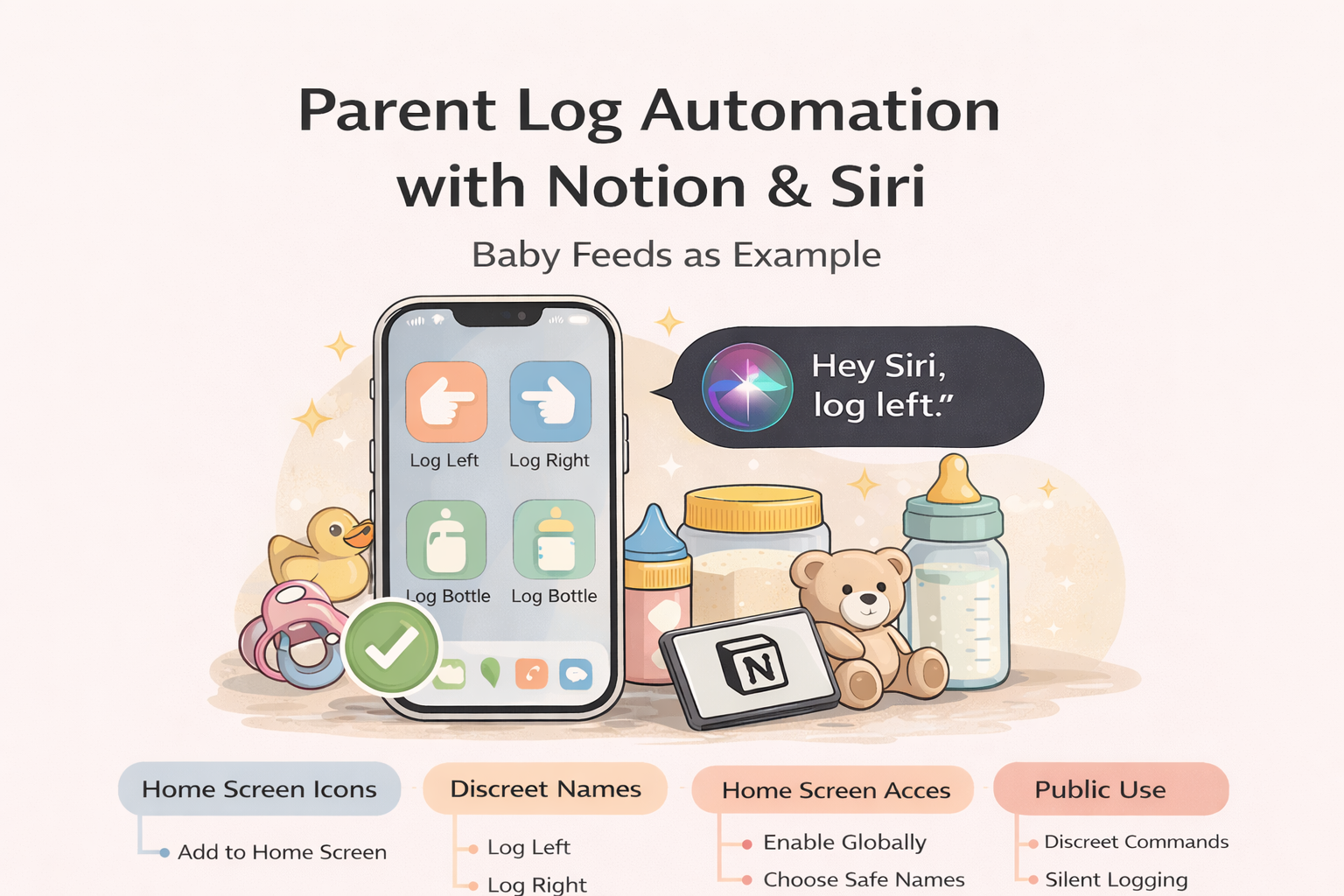
- Discreet shortcut names make logging usable in public.
- The same setup works for baby logs, notes, and other parent records.
Parents rarely struggle with organizing information. They struggle with capturing it when their hands are full, their attention is split, or they are in public.
This article shows how to build a practical parent log automation using Siri and Home Screen shortcuts that send entries directly into Notion. A baby log is used as the concrete example, but the pattern applies to many parent workflows.
Step 1: Create a Parent Log Database in Notion
Create a new database in Notion. Table view is easiest. Name it something clear, such as Parent Log or Baby Log.
Recommended minimum properties
- Name (Title) — the entry title.
- Date (Date) — when the event occurred.
- Log Type (Select) — examples: Bottle, Left, Right, Note.
- Notes (Rich text) — optional details.
- Child (Select or Relation) — if you track multiple children.
Do not overbuild this database. The shortcut will populate most values automatically.
Step 2: Create a Notion Integration Token
Shortcuts will send data to Notion using the Notion API.
Create the integration
- Open Notion Settings.
- Go to Connections or Integrations.
- Create a new Internal Integration.
- Copy the Internal Integration Token.
Share the database with the integration
- Open the Parent Log database.
- Click Share.
- Add the integration and grant edit access.
Step 3: Get the Notion Database ID
- Open the database in a browser.
- Copy the URL.
- Extract the database ID (the long ID string in the URL).
Step 4: Build the iOS Shortcut (Silent or Siri-Based)
Create a new Shortcut in the Shortcuts app. Name it discreetly, such as Log Bottle or Log Entry.
Core Shortcut actions
- Current Date
- Format Date → ISO 8601
- Text → optional notes or fixed value
- Get Contents of URL
Get Contents of URL configuration
- Method: POST
- URL: https://api.notion.com/v1/pages
Headers
- Authorization: Bearer YOUR_NOTION_TOKEN
- Notion-Version: 2022-06-28
- Content-Type: application/json
JSON body example (baby bottle log)
{
  "parent": { "database_id": "YOUR_DATABASE_ID" },
  "properties": {
    "Name": {
      "title": [
        { "text": { "content": "Bottle Feed" } }
      ]
    },
    "Date": {
      "date": { "start": "2026-01-14T19:30:00Z" }
    },
    "Log Type": {
      "select": { "name": "Bottle" }
    },
    "Notes": {
      "rich_text": [
        { "text": { "content": "Logged via shortcut" } }
      ]
    }
  }
}
In Shortcuts, replace values with variables instead of hard-coded text.
Step 5: Add to Home Screen and Enable Siri
Add to Home Screen
- Open the shortcut.
- Tap Share.
- Select Add to Home Screen.
- Choose a neutral icon and name.
Enable Siri
- Open Settings → Siri & Search.
- Enable Listen for “Hey Siri”.
- Enable Allow Siri When Locked.
Say the shortcut name exactly: “Hey Siri, Log Bottle.”
Other Parent Log Examples
- Sleep and nap tracking
- Medication or vitamin logs
- School or daycare notes
- Behavior observations
- Household admin notes
One-Sentence Recommendation
Build one solid parent log shortcut that posts directly to Notion, then duplicate it for each log type you want to capture silently or by voice.